Installation
RunWisp is one Go binary. You list shell commands in runwisp.toml, and
RunWisp runs them on a schedule or keeps them running, and records the output
of every run. It runs on Linux, macOS, and WSL, on x86_64 or arm64.
1. Install
Section titled “1. Install”Detects your OS and CPU, downloads the matching release, checks its
SHA-256, and puts runwisp on your PATH.
curl -fsSL https://get.runwisp.com | shOn macOS or Linux with Homebrew:
brew install runwisp/tap/runwispbrew upgrade runwisp picks up new releases.
On Debian, Ubuntu, Fedora, or RHEL, install the package for your CPU
(x64 or arm64):
# Debian, Ubuntucurl -fLO https://github.com/runwisp/runwisp/releases/latest/download/runwisp-linux-x64.debsudo apt install ./runwisp-linux-x64.deb
# Fedora, RHELsudo dnf install https://github.com/runwisp/runwisp/releases/latest/download/runwisp-linux-x64.rpm
The package adds the RunWisp repository at pkg.runwisp.com, so
apt upgrade or dnf upgrade picks up new releases.
The npm package pulls in the matching native binary as an optional dependency when it’s installed.
bunx runwisp # try it without installing (or: npx runwisp)bun add -g runwisp # install globally (or: npm install -g runwisp)Download runwisp-{linux,darwin}-{x64,arm64}.tar.gz from the
releases page. checksums-sha256.txt next to it
has the checksums.
tar -xzf runwisp-linux-x64.tar.gzsudo install -m 0755 runwisp /usr/local/bin/runwispYou need Go 1.27+ and Bun.
git clone https://github.com/runwisp/runwispcd runwispbun installbun run buildThe binary is at apps/runwisp/runwisp.
The container needs a password and two volumes. See Running in Docker.
To update later, run runwisp upgrade.
It uses the same method you installed with.
2. Start RunWisp
Section titled “2. Start RunWisp”Run runwisp in the directory where your config should live:
runwispIf there is no runwisp.toml there, it asks before creating one:
No runwisp.toml at /home/user/myproject.Create a starter with one example task? [Y/n]Press Enter. RunWisp writes the file, starts the daemon in the background, and opens the TUI. Answer no and nothing is written. If the machine has cron jobs, the same prompt offers to read them instead; see From cron.
The starter file has one task and two commented examples:
# runwisp.toml# Docs: https://docs.runwisp.com/configuration/overview/
[tasks.hello]description = "Example task. Trigger it from the TUI (press r) or the Web UI."run = "echo hello from runwisp"
# Schedule a task with cron:# [tasks.heartbeat]# cron = "* * * * *"# run  = "date"
# Long-running service (auto-restart, supports multiple instances):# [services.worker]# instances = 1# run       = "node ./worker.js"
On a server with no terminal (Docker, systemd), use runwisp daemon instead:
it never prompts, and exits with an error if the config is missing. To start
RunWisp on boot, see Autostart.
3. Run the example task
Section titled “3. Run the example task”All three ways use the same daemon and show up in the same run history.
Press ← to focus the sidebar, move to hello, and press
r. The run opens and its output streams in live.
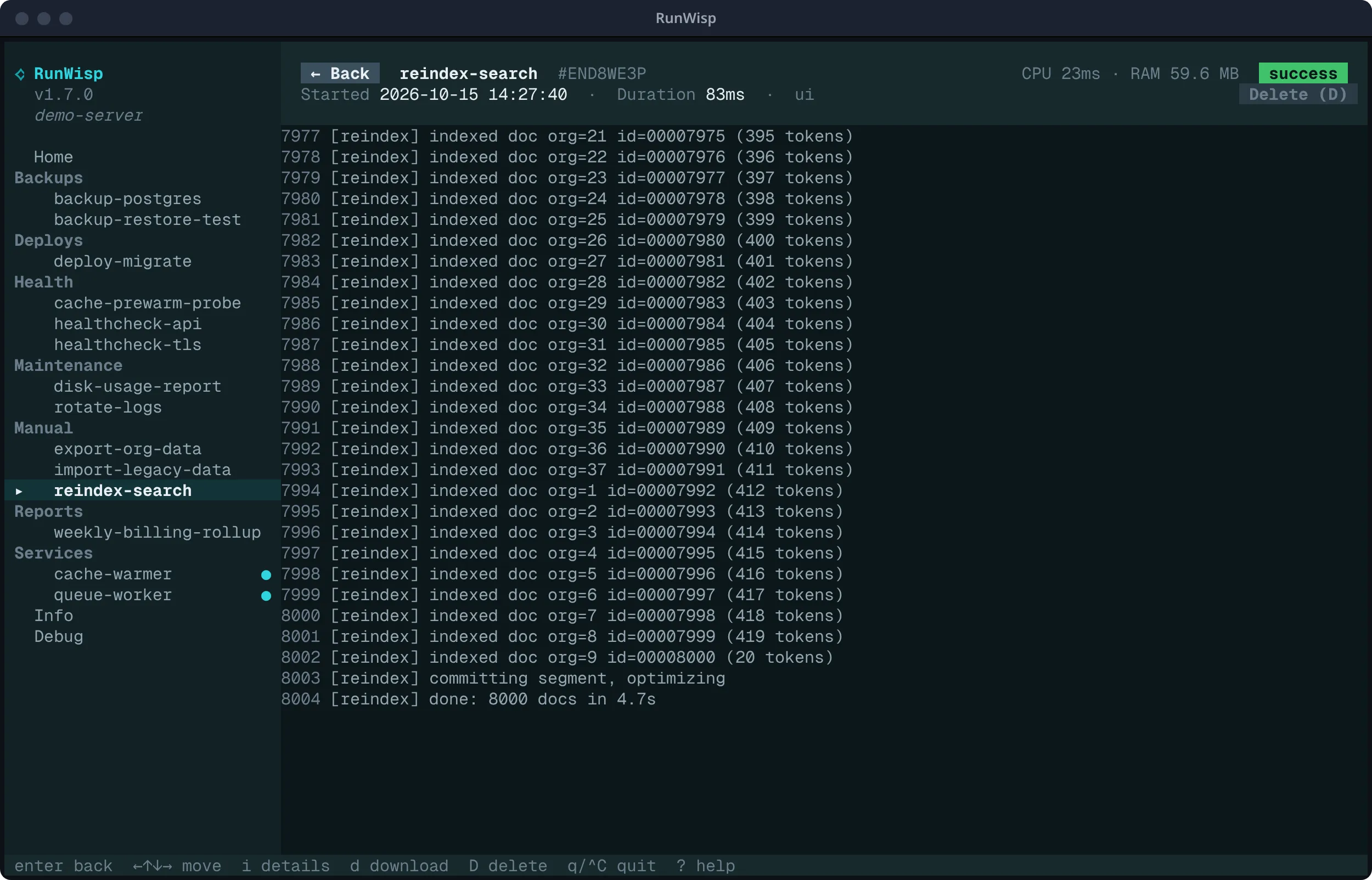
Press Esc to go back to the sidebar. The TUI page lists the other keys.
Open the Web UI (next step), click hello in the sidebar, click
Run now, and confirm Run Now. The output streams into the log pane.
runwisp run helloPrints the output and exits with the task’s exit code. See
runwisp run.
4. Open the Web UI
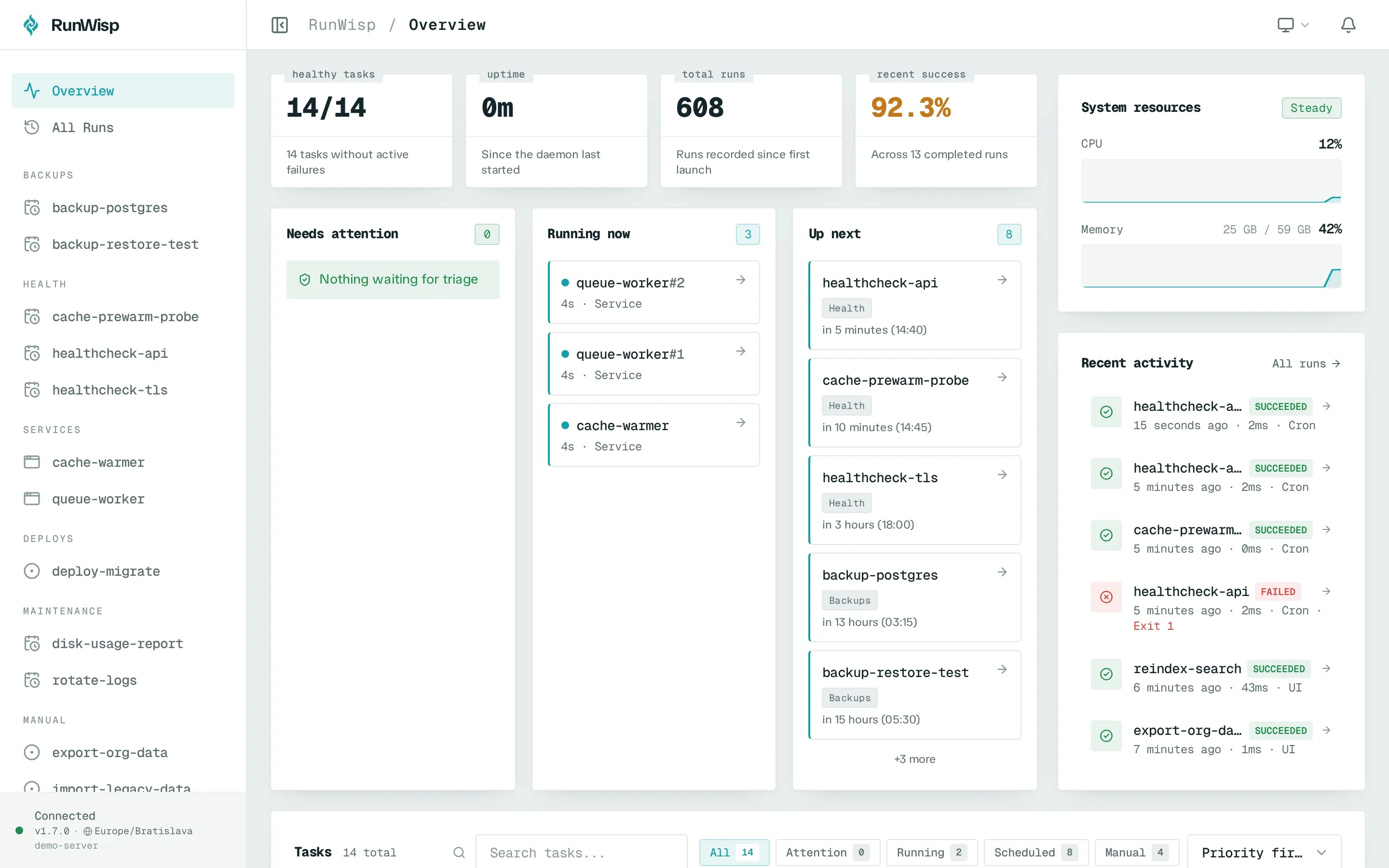
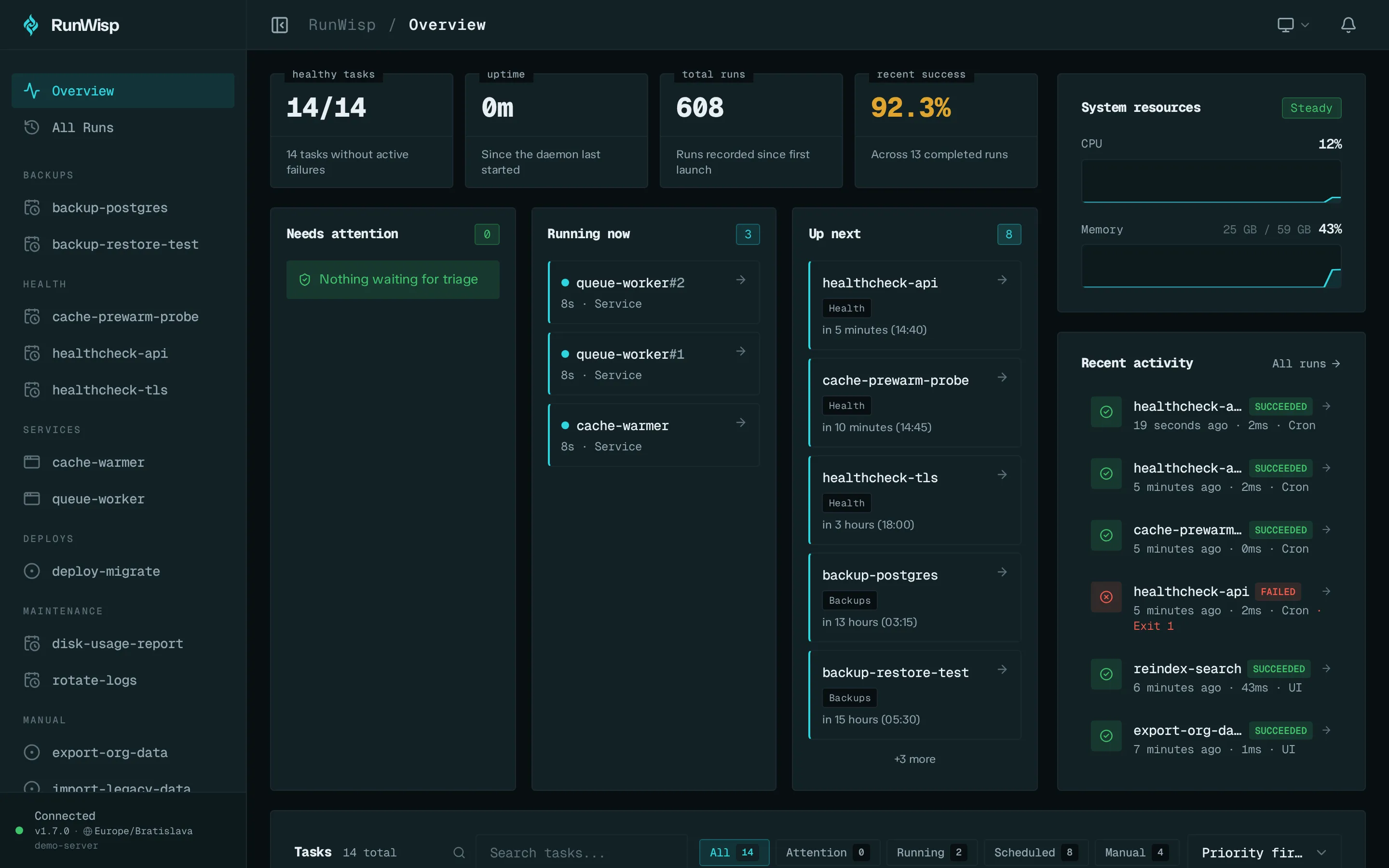
Section titled “4. Open the Web UI”In the TUI, go to Home in the sidebar, select Open Web UI, and press Enter. Your browser opens the dashboard, already logged in.
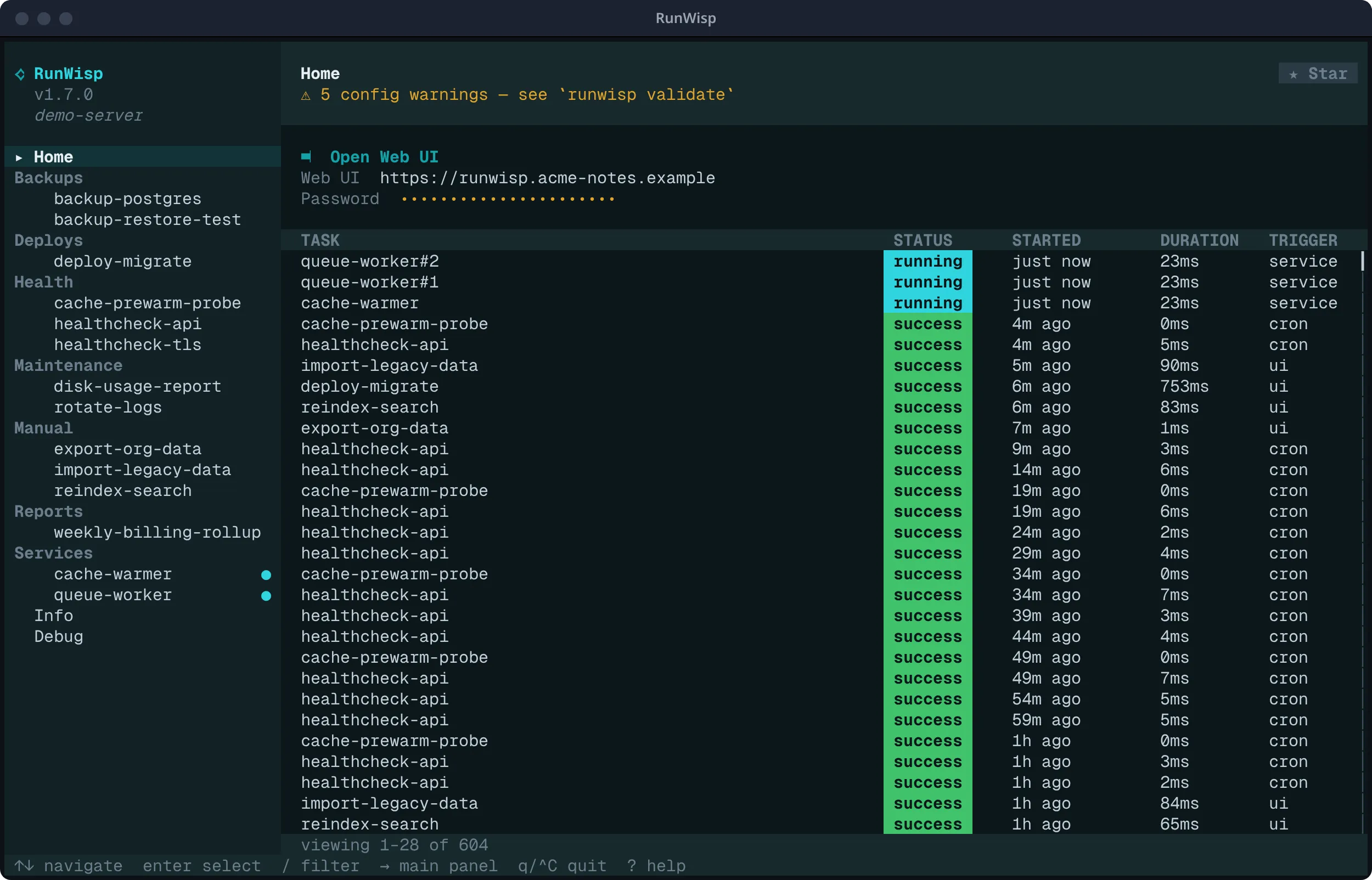
The Home page also shows the Web UI address (http://localhost:9477 by
default) and the generated password. Select the password and
press Enter to copy it, for logging in from another browser. To set your own password or turn
login off, see Authentication.