The Web UI tour
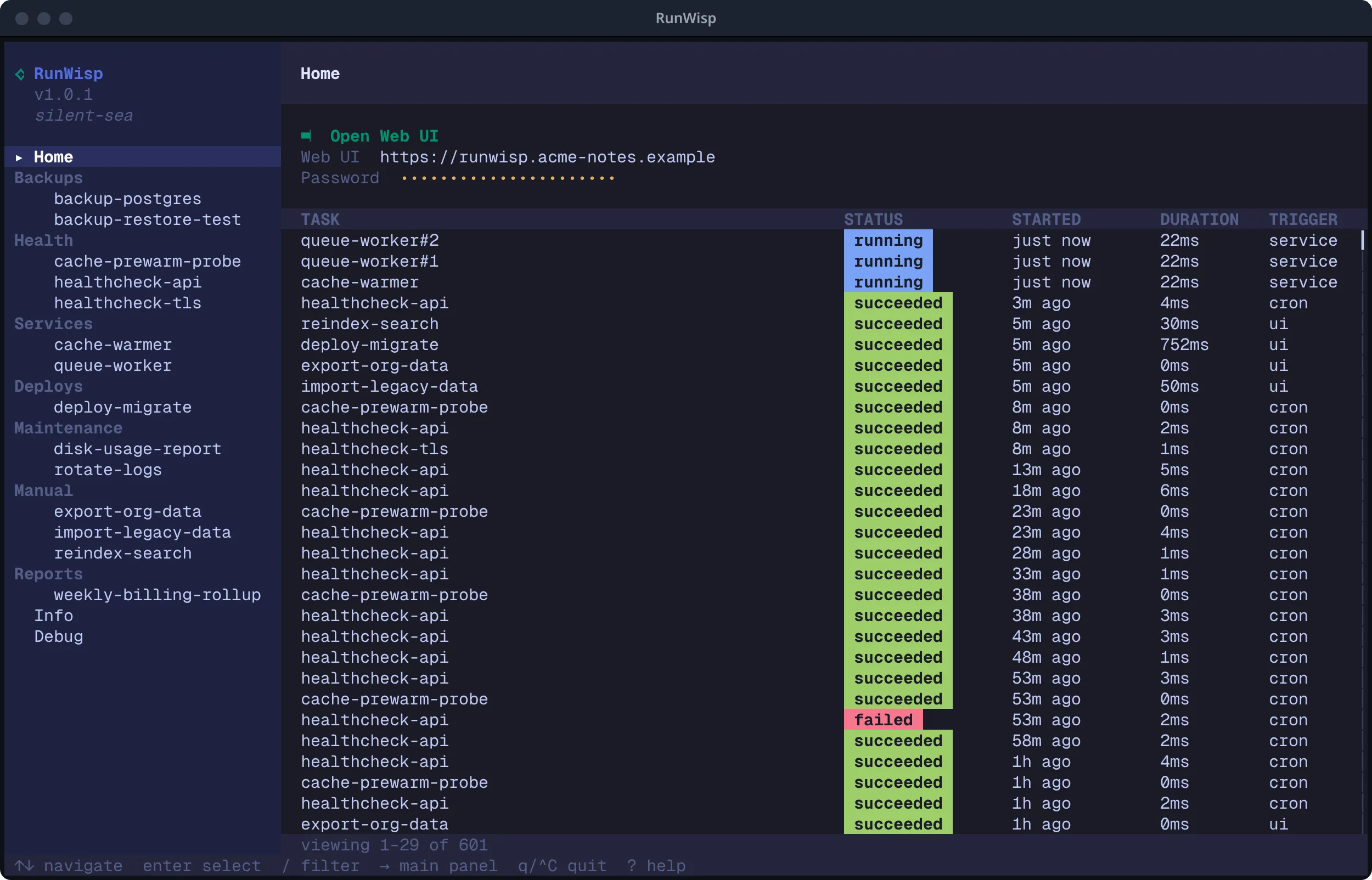
The Web UI is the same control surface as the TUI, rendered in
your browser and updated live over Server-Sent Events. It ships
inside the daemon binary — no separate static-asset server, no CDN,
no extra port. Browse to http://<host>:<port> (default
http://127.0.0.1:9477) and you’re there.
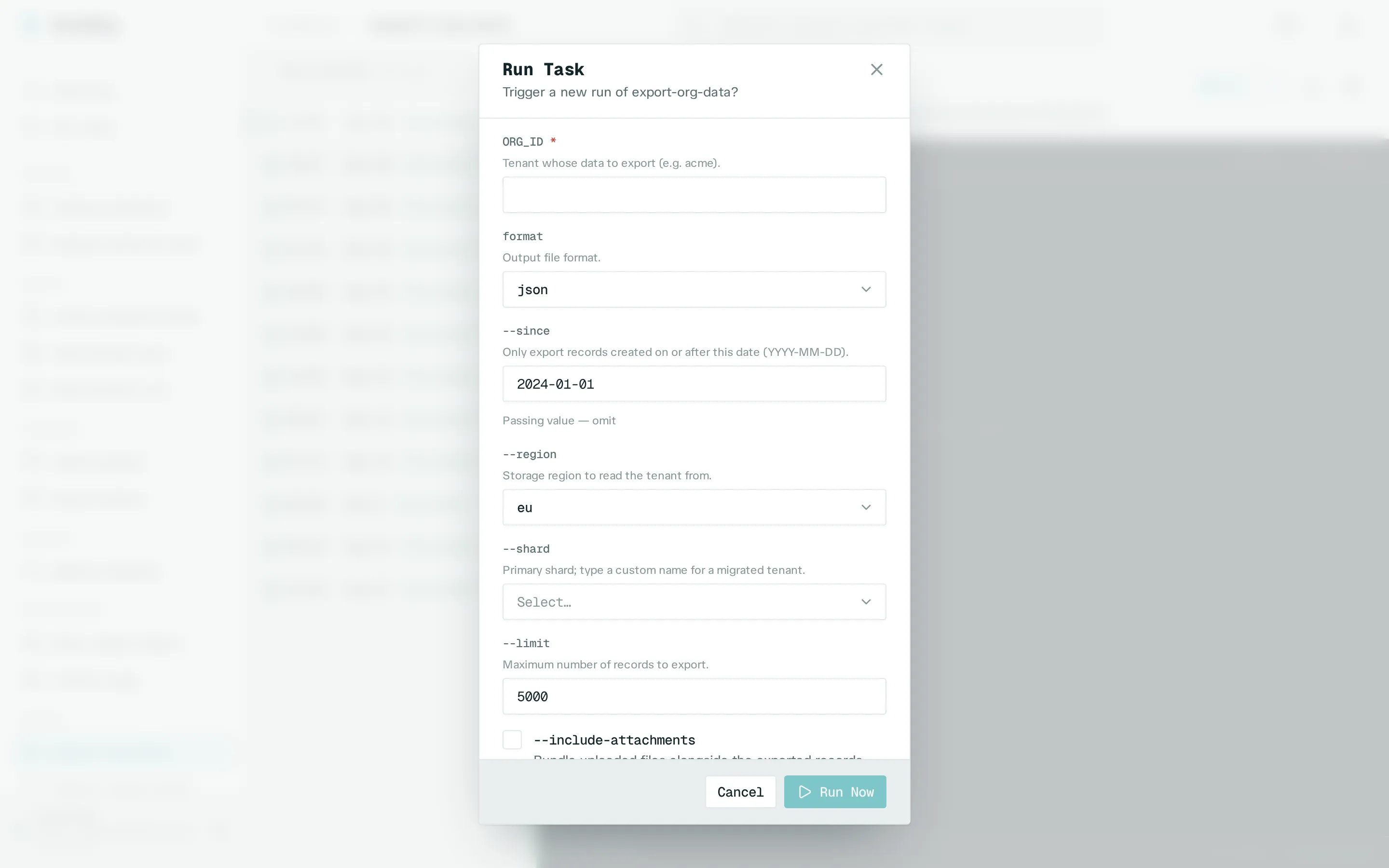
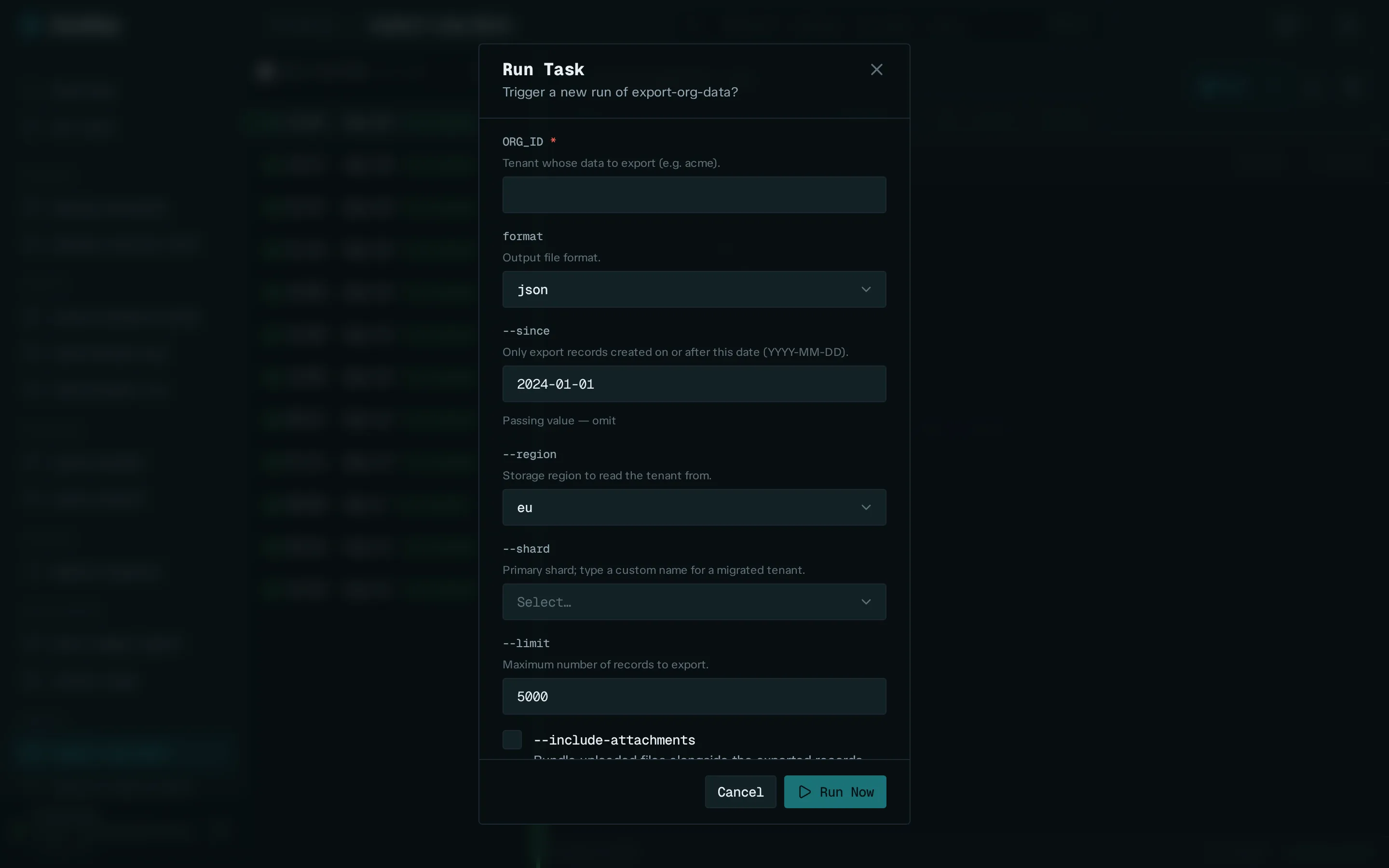
The dashboard is intentionally small and read-mostly: trigger and
restart are the only mutations. Everything else is observation —
runwisp.toml stays the source of truth.
Logging in
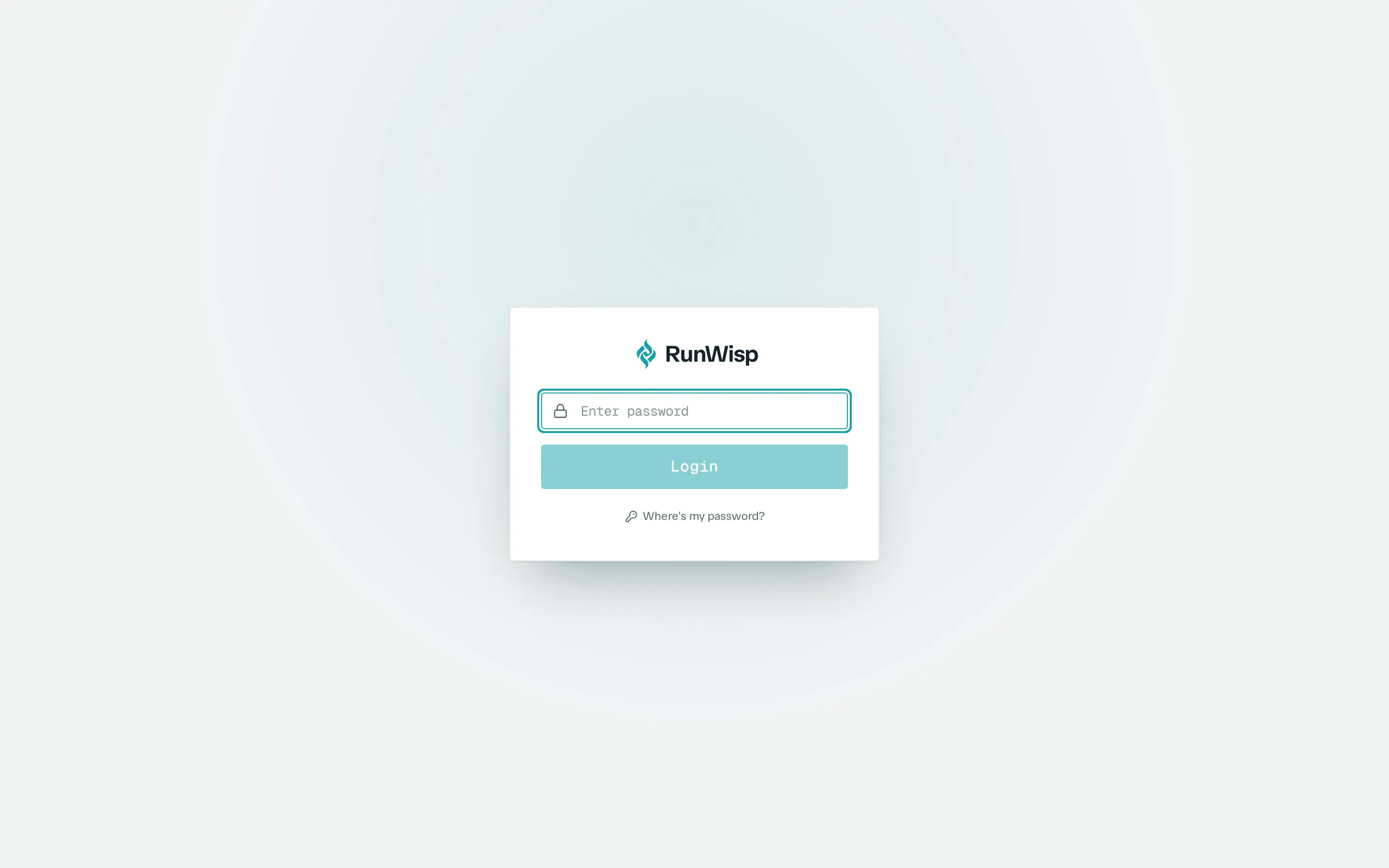
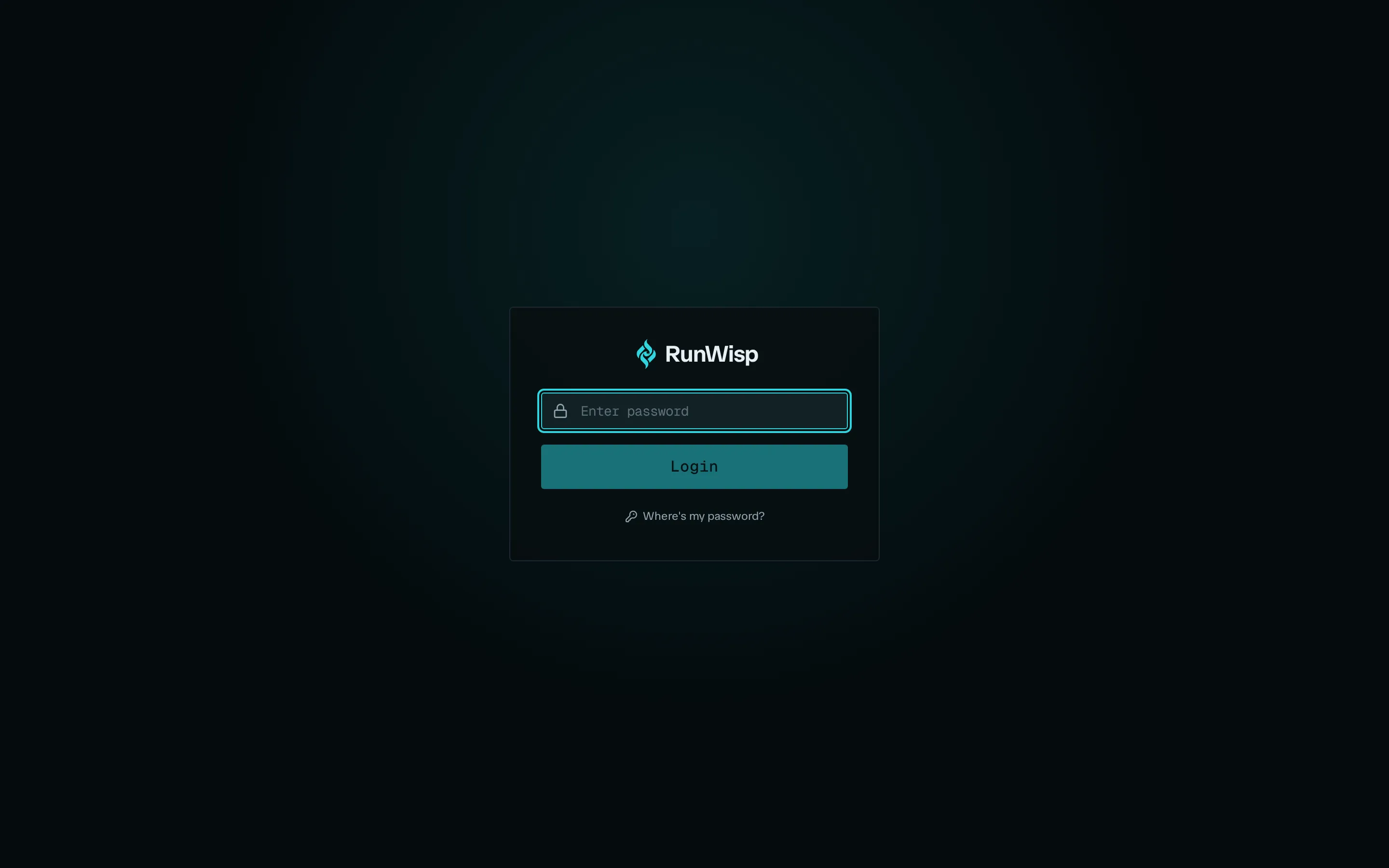
Section titled “Logging in”You’ll see a single password field on first visit. There’s no username — RunWisp is single-operator. Type the password and submit.
Behind the scenes the page does a CHAP handshake: it asks the
daemon for a nonce, computes SHA256(password + ":" + nonce), sends
the digest, and on success stores a JWT in localStorage under the
key runwisp_token. The password itself never crosses the wire.
The token lasts 24 hours. After that, you log in again. Five wrong passwords from your IP in five minutes triggers a rate-limit lockout — wait it out or restart the daemon.
The layout
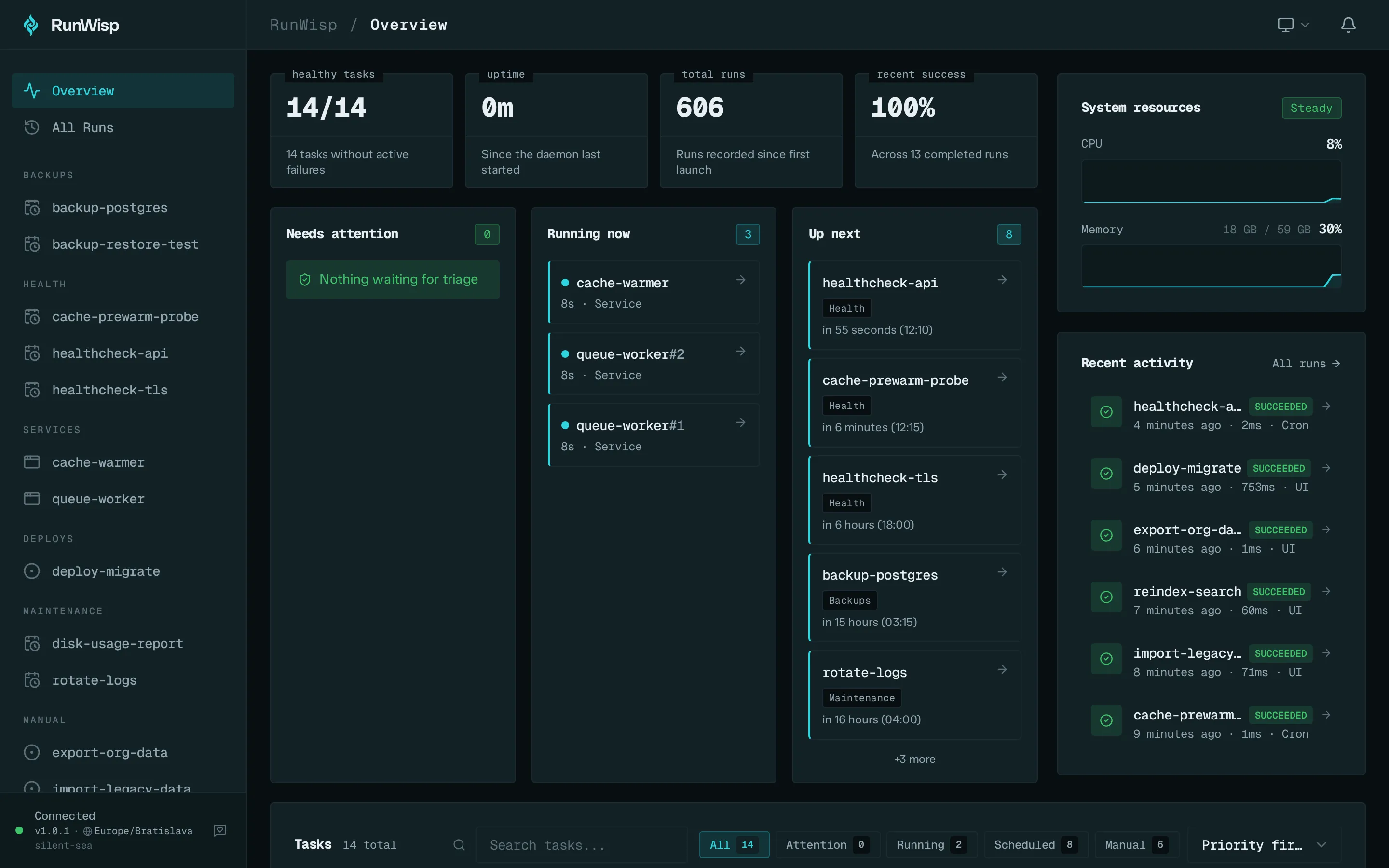
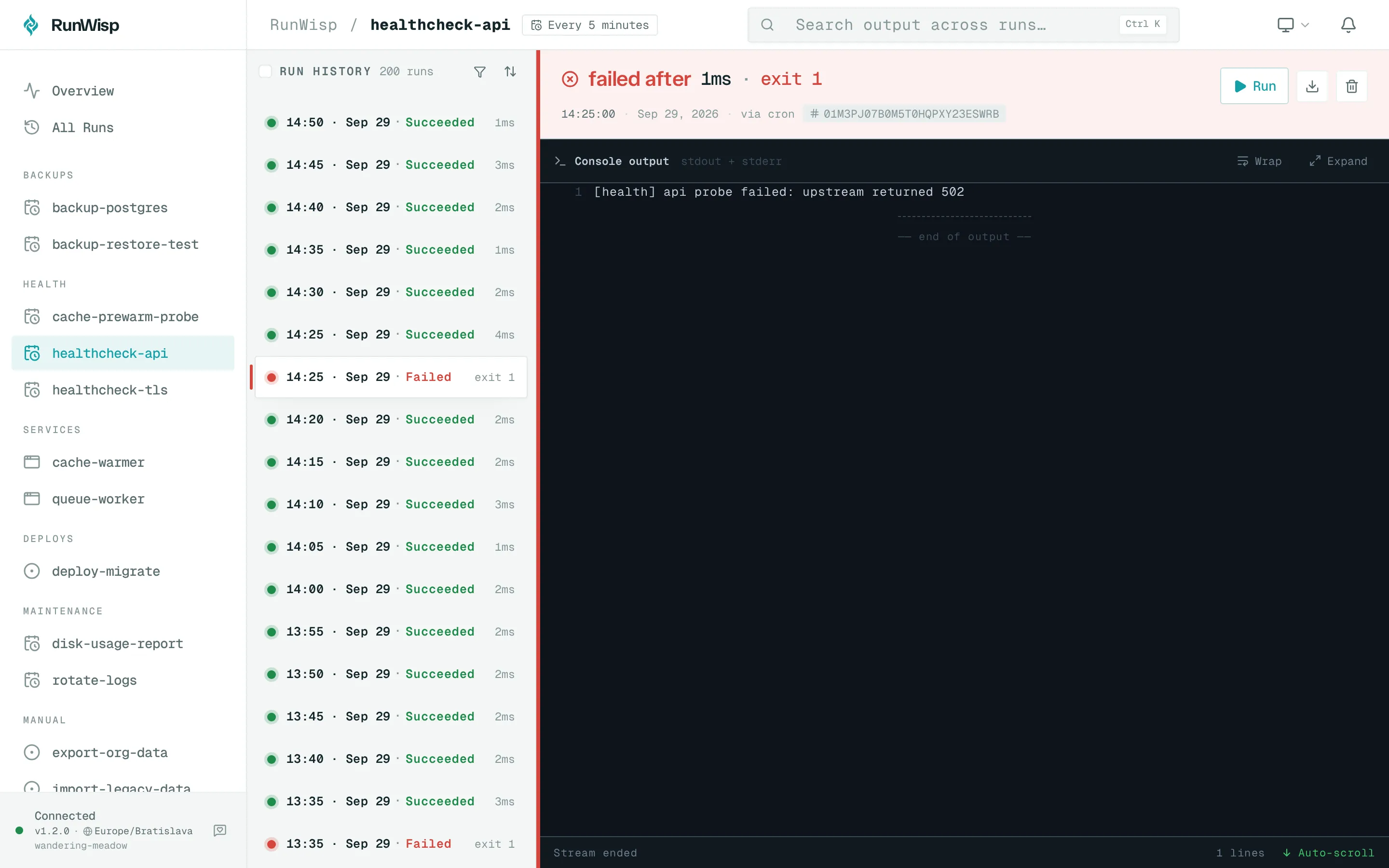
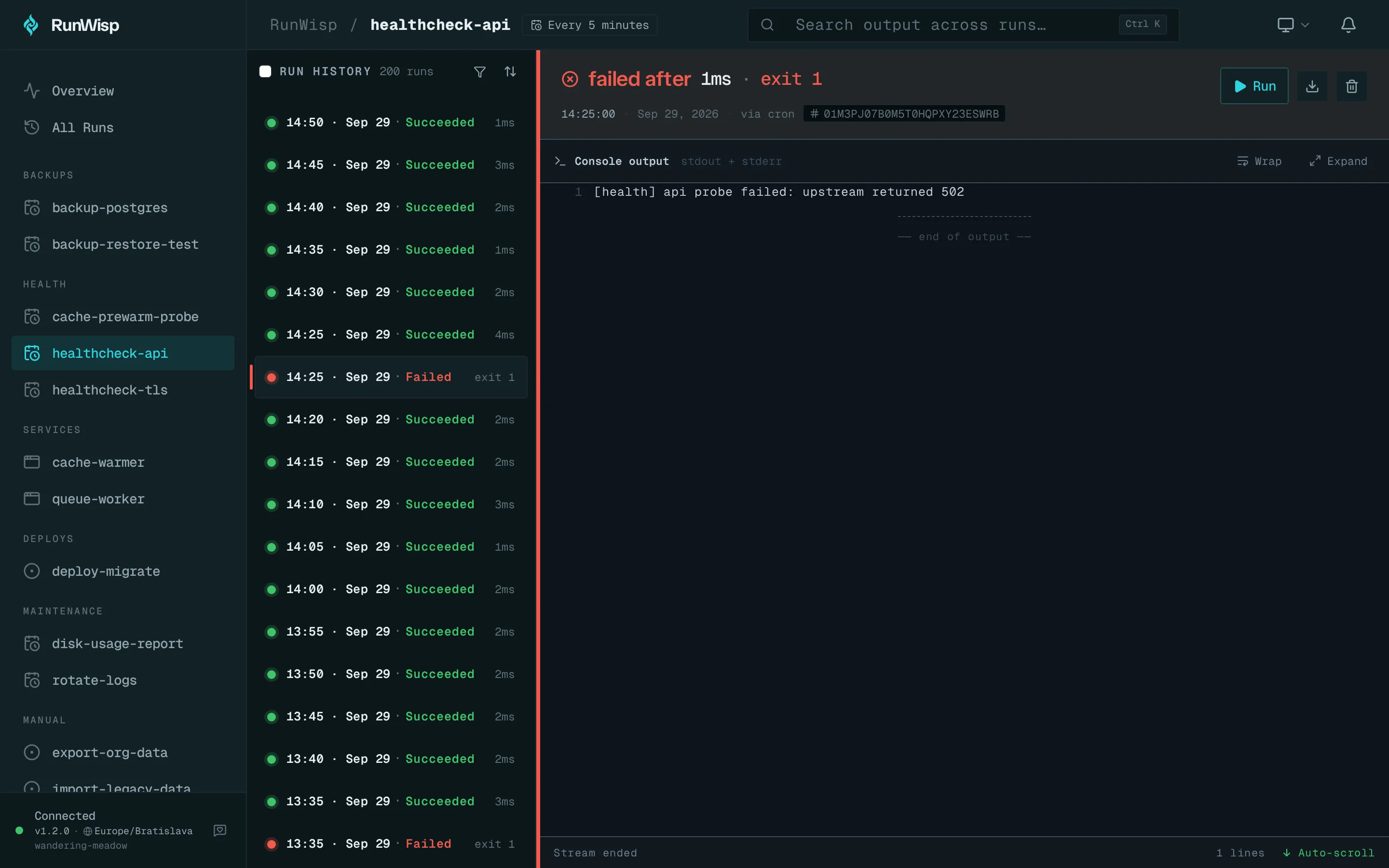
Section titled “The layout”Three panes, like the TUI:
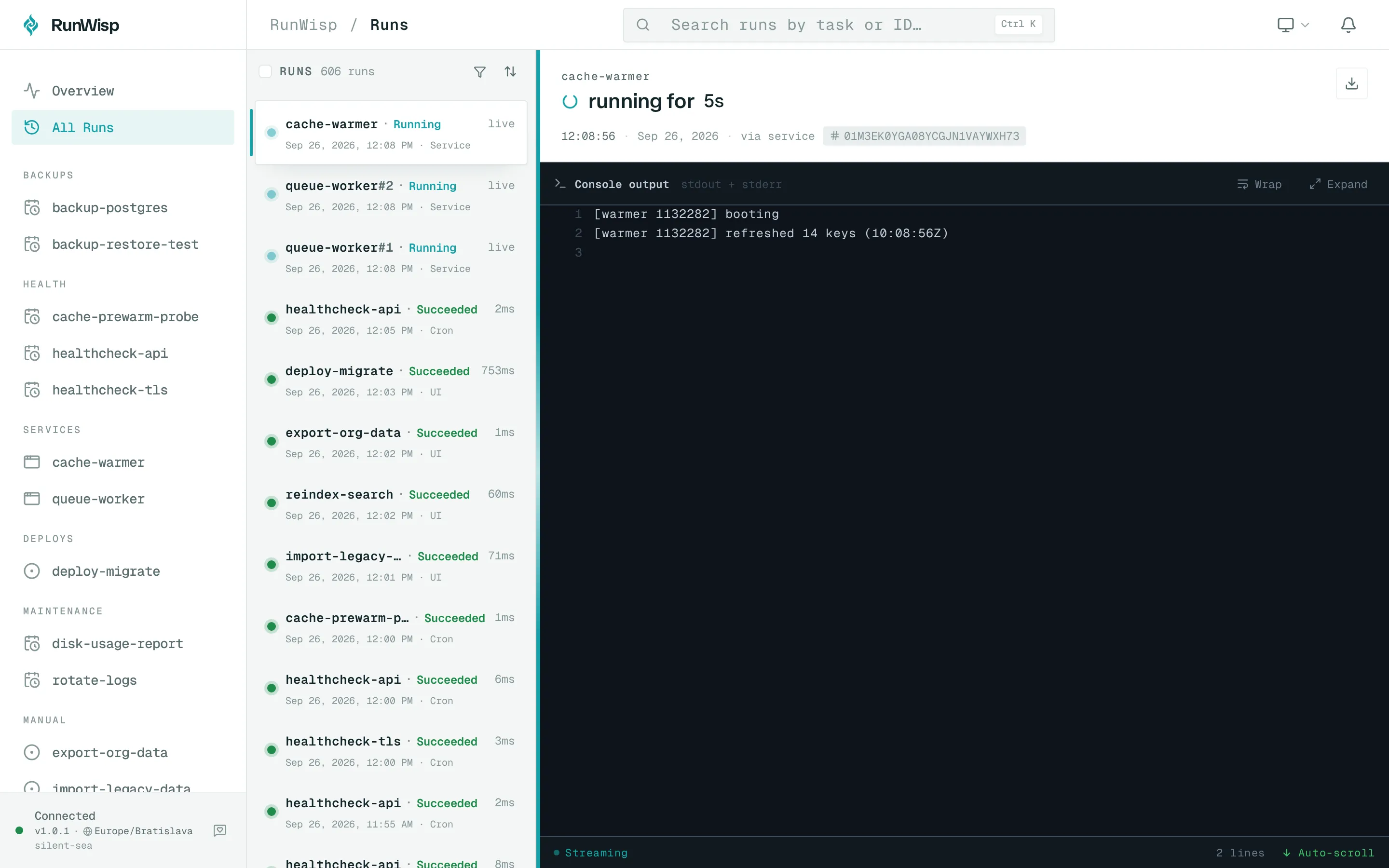
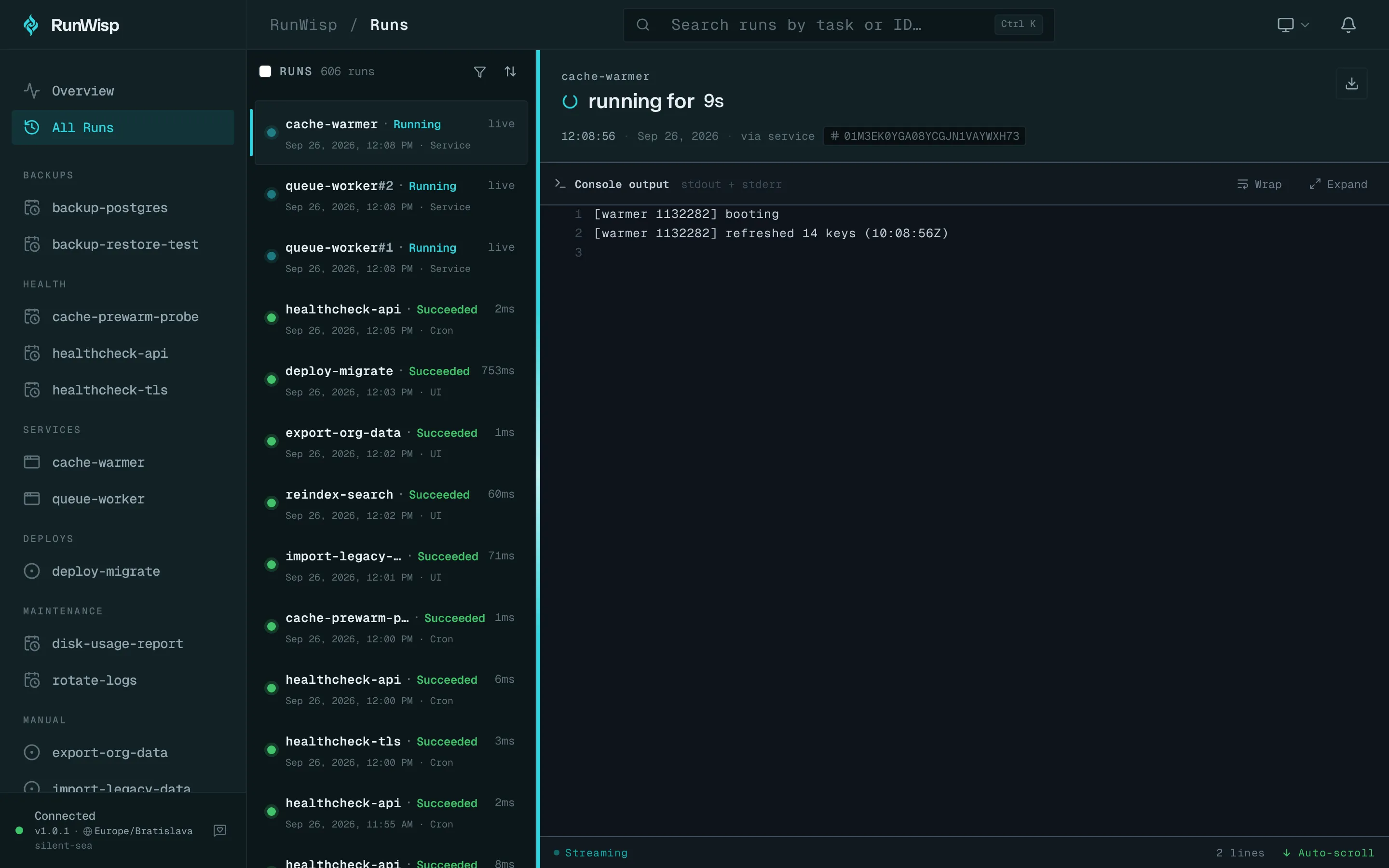
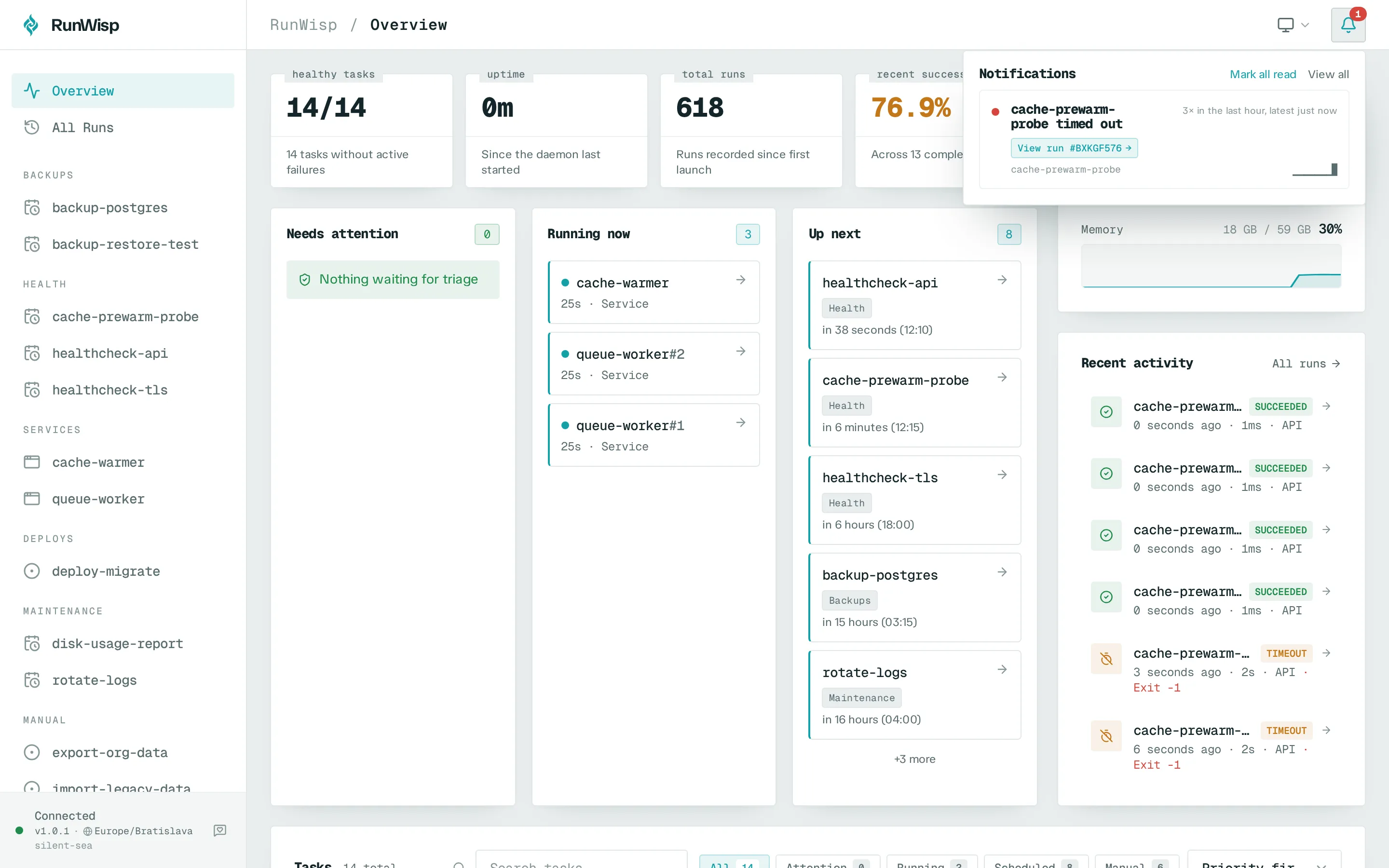
┌──────────────────┬──────────────────────────────────────────────────────┐│ RunWisp │ RunWisp / Overview 🔔 3 ││ ───── │ ──────────────────────────────────────────────── ││ Overview │ ││ All Runs │ ┌─ Daemon ──────────────────┐ ┌─ Stats ──────┐ ││ │ │ host builder-01 │ │ active 12 │ ││ TASKS │ │ ver v0.4.0 │ │ success 98% │ ││ backup-postgres │ │ up 3h 12m │ │ cpu 4% │ ││ smoke-test │ └───────────────────────────┘ └──────────────┘ ││ │ ││ SERVICES │ Tasks ─ All · Attention · Running · Scheduled ││ api-worker (×3) │ ───────────── ││ │ ✓ backup-postgres 12s 00:00 daily ││ │ ✗ smoke-test 2s manual ││ │ ⏵ api-worker#0 — service ││ ● connected │ │└──────────────────┴──────────────────────────────────────────────────────┘- Sidebar — left, white, with the brand at the top, the two
primary links (Overview, All Runs), then your tasks and
services grouped by
group =. The footer shows a live connection indicator and the daemon URL. - Header — top, a breadcrumb (
RunWisp / <page>), and a notifications bell with unread count. - Main pane — everything else.
Overview (/)
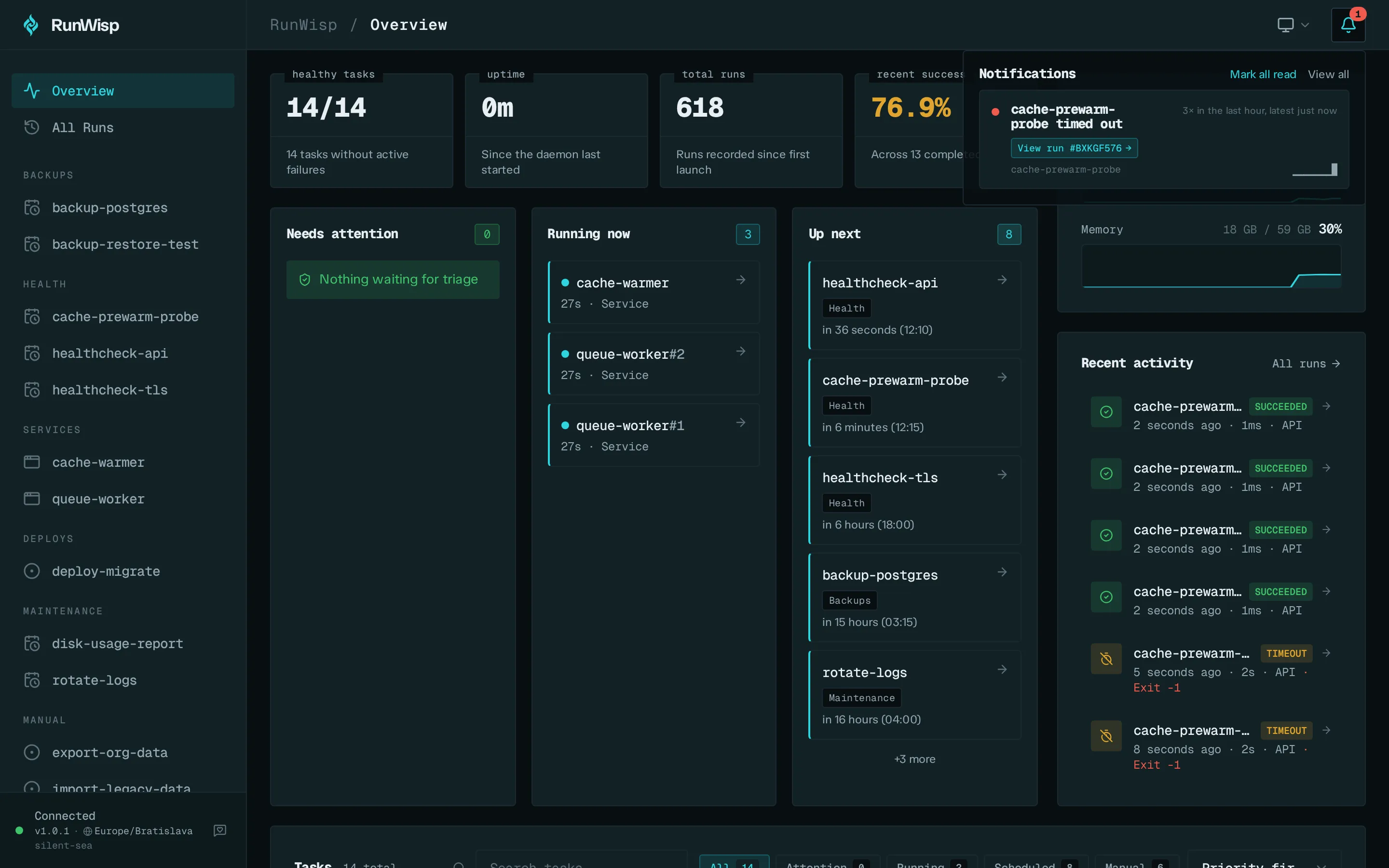
Section titled “Overview (/)”The landing page after login. Four panels:
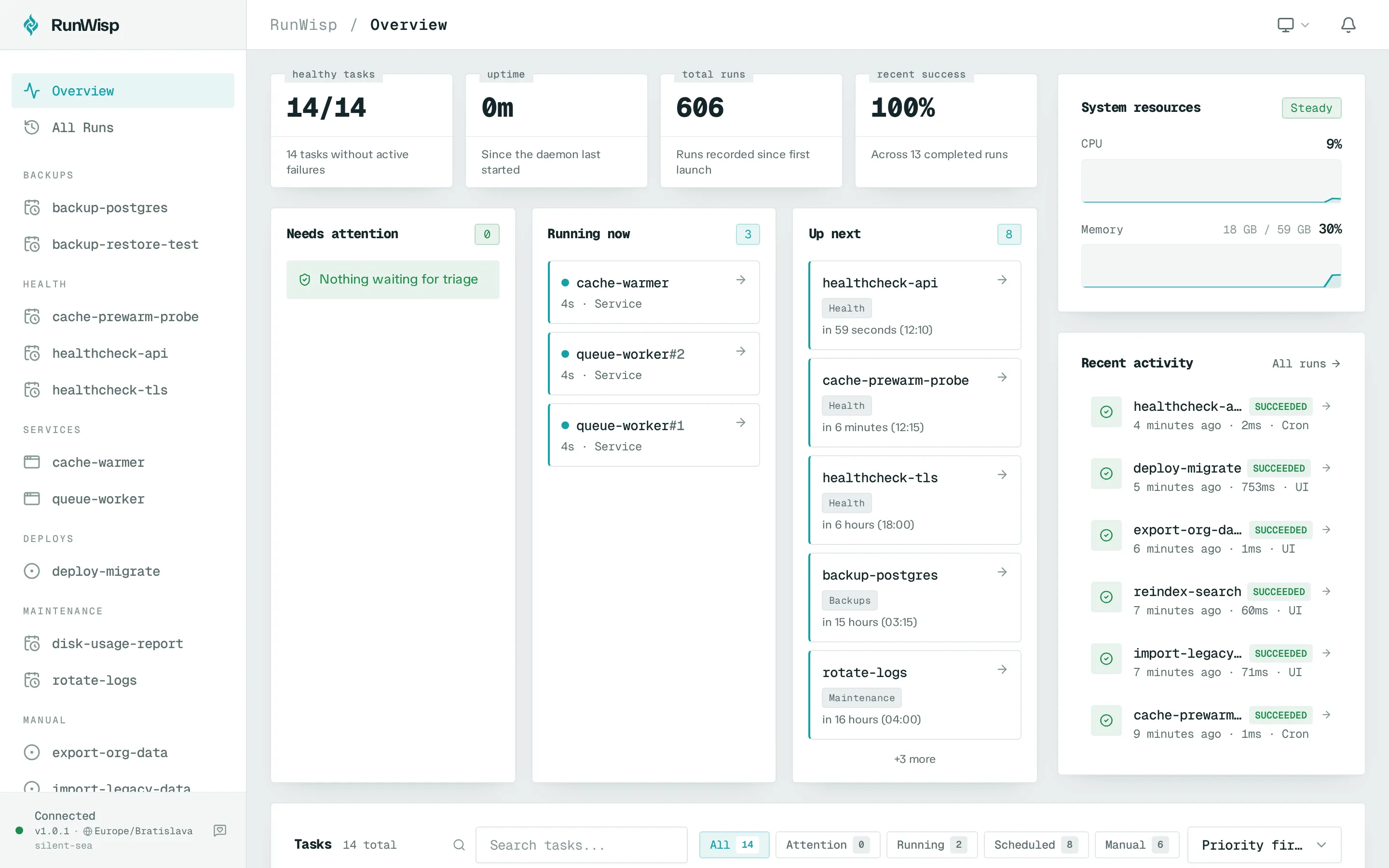
- Daemon hero — name, version, uptime, host, OS, CPU/RAM use.
- Stats — active task count, success rate over the recent window, CPU and memory percentages.
- Task overview — filter tabs (All · Attention · Running · Scheduled · Manual) and a sort selector. Up to four tasks per bucket so you see the most-relevant slice without scrolling.
- Recent activity — the six most recent runs across all tasks, updated live as new ones complete.
Below them, a small CPU / memory sparkline strip refreshes every two seconds.
All runs (/runs)
Section titled “All runs (/runs)”A flat history of the 200 most recent runs across every task, sorted newest-first. Useful for “what’s been happening” — or if a notification points you at a run id and you want to find it without clicking into a specific task.
Task detail (/tasks/{name})
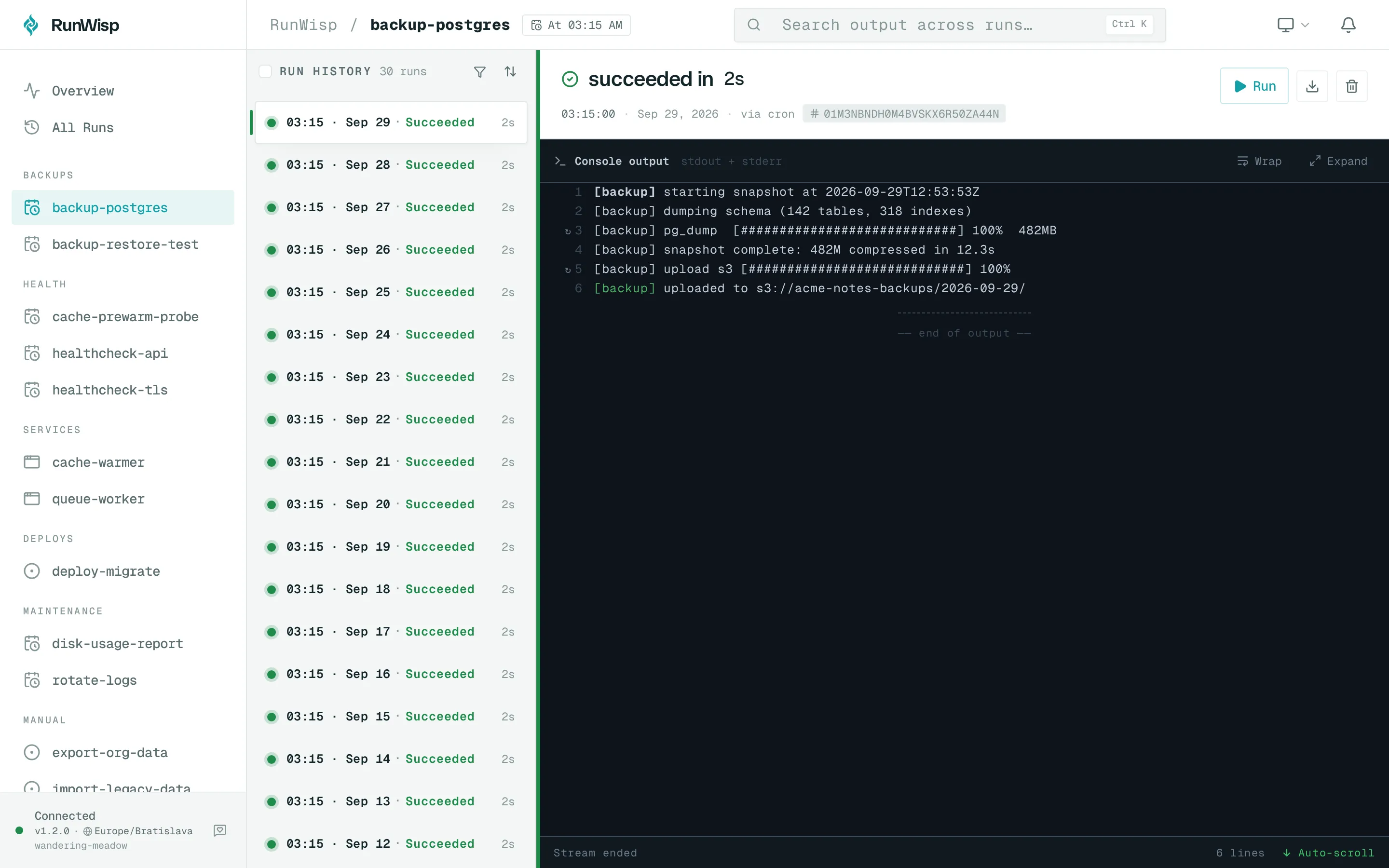
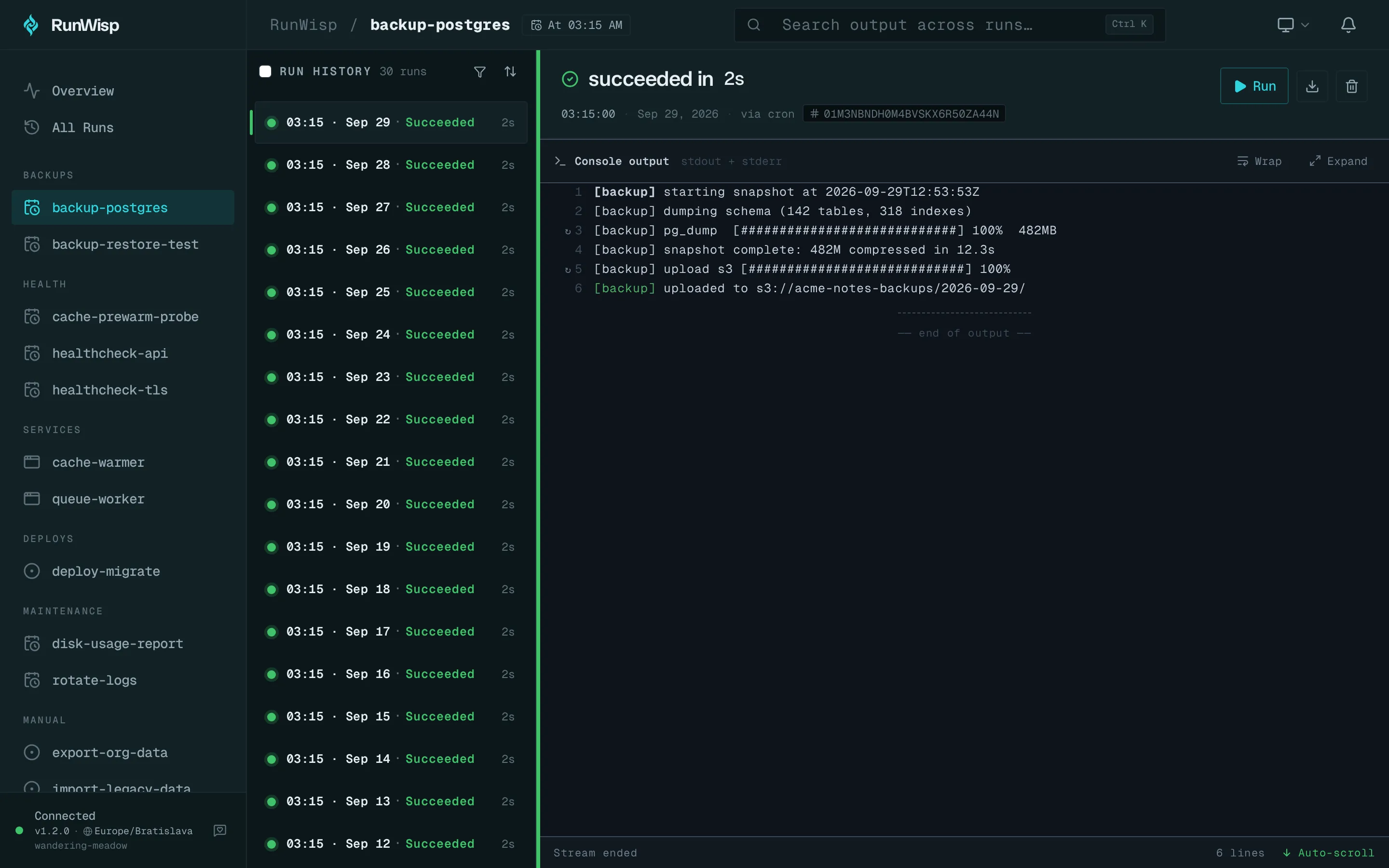
Section titled “Task detail (/tasks/{name})”Click a task in the sidebar (or any run in the activity feed) to land here.
- Header — task name, description, schedule line.
- Action button — Run Now for tasks, Restart for services,
Stop while a run is in flight. Run Now greys out when the
task is at its
parallelismlimit. - Run history — the 50 most recent runs for this task, selectable.
- Log viewer — the streaming log for the selected run, occupying most of the pane.
For a service, the detail also surfaces replica count and the Restart button cancels every replica — the supervisor refills the slots via its normal exit-handler path.
The log viewer
Section titled “The log viewer”When you open a finished run, the log viewer lands at the tail in a single round-trip and lazy-loads older content as you scroll up. For an in-flight run it streams new lines live over SSE.
- Line numbers are absolute — they match what the underlying log file records.
- ANSI colour codes from the task’s stdout/stderr are rendered faithfully.
- A line longer than 64 KB is split, with the continuation marked.
- The viewer handles log rotation transparently — when a run with
log_on_full = "drop_old"rotates its file, you just see a small “log rotated” marker and continuous line numbering.
There is no “download” button. The on-disk file lives at
data/logs/<task>/{timestamp}_{run-id-suffix}.log — copy it from
disk if you need a local archive. The REST API exposes
GET /api/tasks/{name}/runs/{id}/log/raw for the same content as
text/plain.
Notifications bell
Section titled “Notifications bell”Top-right of the header. The badge shows your unread count, coloured red if any of the unread events are errors, teal otherwise.
Click the bell to open the popover — the ten most recent notifications, with read-state toggles, a “View all” link, and a “Mark all read” button.
Each row carries:
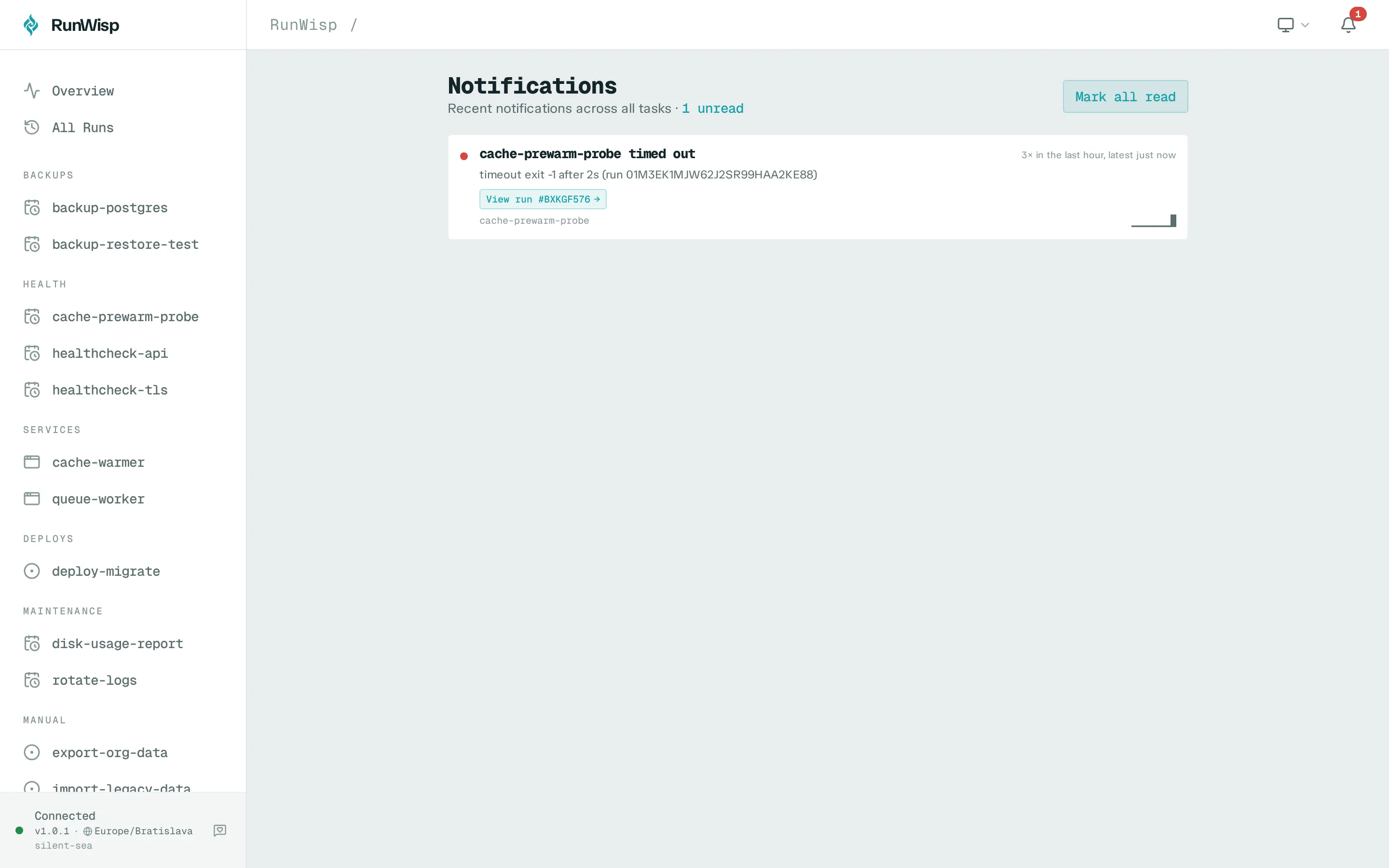
- A coloured dot for severity (red error, orange warn, teal info).
- The event headline.
- Relative time (
5 seconds ago). - The task name.
- A small sparkline of recent occurrences when the row is coalesced.
Coalescing is what the notifications model does so a
flapping task doesn’t fill your bell with duplicates: events sharing
a dedup key (task + kind + end reason) collapse into a single
row with a count and a rhythm summary (“failed 12 times, latest 30s
ago”). The sparkline reads at a glance.
Click a notification to land on the run it’s about.
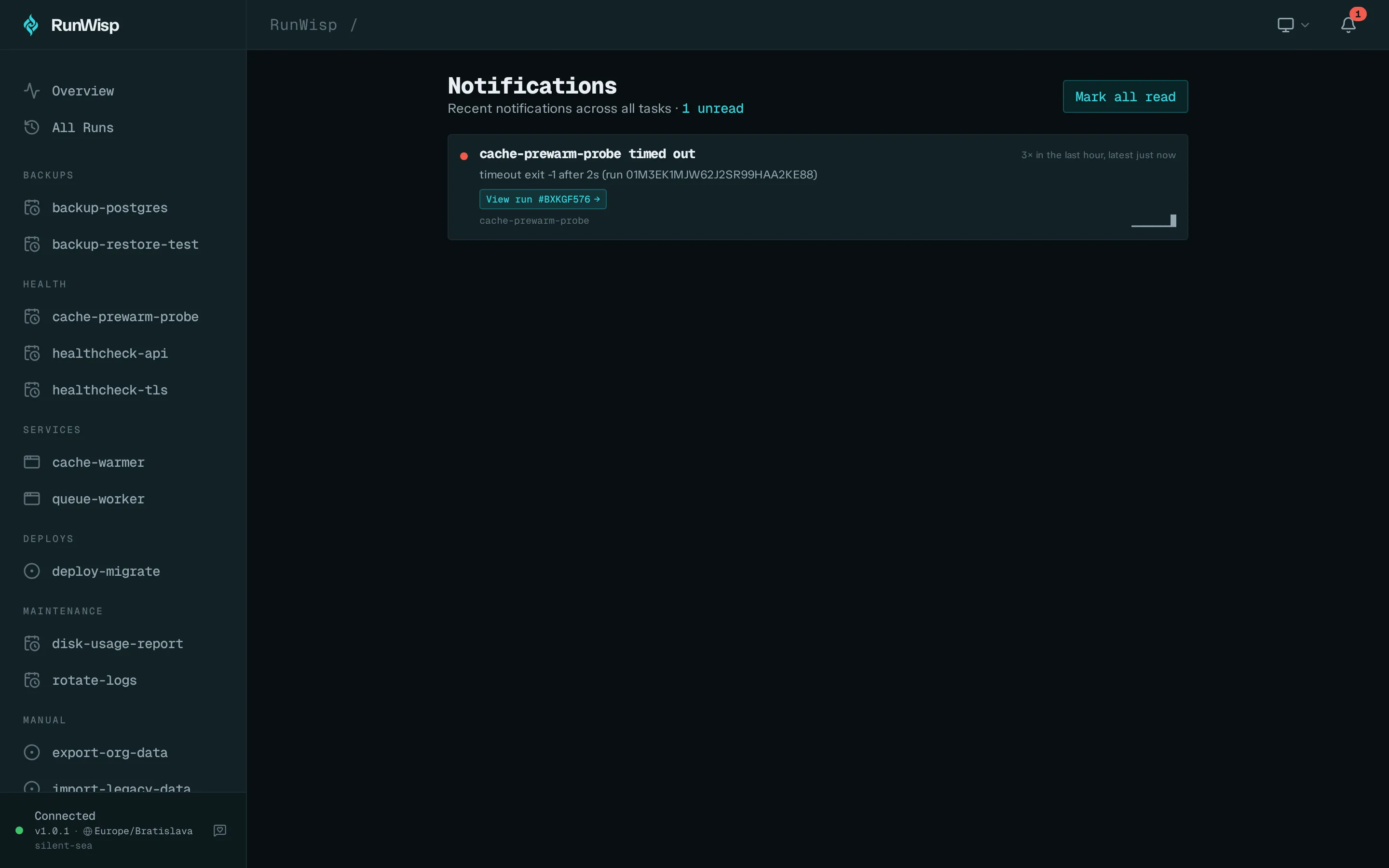
Full notifications page (/notifications)
Section titled “Full notifications page (/notifications)”The bell only shows ten. The page shows everything — paginated, with a “Load more” button. Same row layout, plus the unread count up top.
Connection-lost overlay
Section titled “Connection-lost overlay”When the daemon stops responding (network blip, restart, SIGKILL), the UI overlays a Connection Lost panel:
- A spinning indicator while it retries.
- Time since the disconnect (
Down for: 14s). - Time since you were last reachable.
- The retry attempt counter, plus a countdown to the next automatic retry.
- A Retry now button.
- A collapsible details section with the last error message.
Auto-retry uses exponential backoff capped at 30 seconds. As soon as
the daemon answers /health, the overlay dismisses itself and
streams resume.
One-click launch from the TUI
Section titled “One-click launch from the TUI”The TUI’s Open Web UI button does more than print a URL — it asks
the daemon for a short-lived launch ticket, opens
http://<host>:<port>/?ticket=<value>, and the daemon converts the
ticket into a session cookie. You arrive logged in, no password
prompt. The cookie is HttpOnly, restricted to /api/, with
SameSite=Strict — see the auth page for the
attribute set.
What’s intentionally not in the Web UI
Section titled “What’s intentionally not in the Web UI”- No config editor.
runwisp.tomlis the source of truth and loaded at daemon startup. Edit in$EDITOR, restart. - No notifier setup. Notifiers and routes are TOML.
- No user / role management. Single-operator model.
- No schedule editor. Tasks don’t get rescheduled from the UI.
- No service scaling UI. Change
instancesin TOML and restart. - No log download / export. Use the REST API or the on-disk file.
The pattern, again: this is a control plane, not a configuration UI. The decisions live in TOML; the daemon enforces them; the dashboard shows the result.
Where to next
Section titled “Where to next”- Concepts: TUI tour — the same surface, in your terminal.
- Configuration overview — what to put in the TOML the dashboard is observing.
- Operations: auth — what the login is doing under the hood.